(Resource.Id.floatingAddNewCounterButton);
_floatingActionButton.SetCommand(nameof(FloatingActionButton.Click), ViewModelLocator.Counters.AddNewCounterCommand);
...
}
```
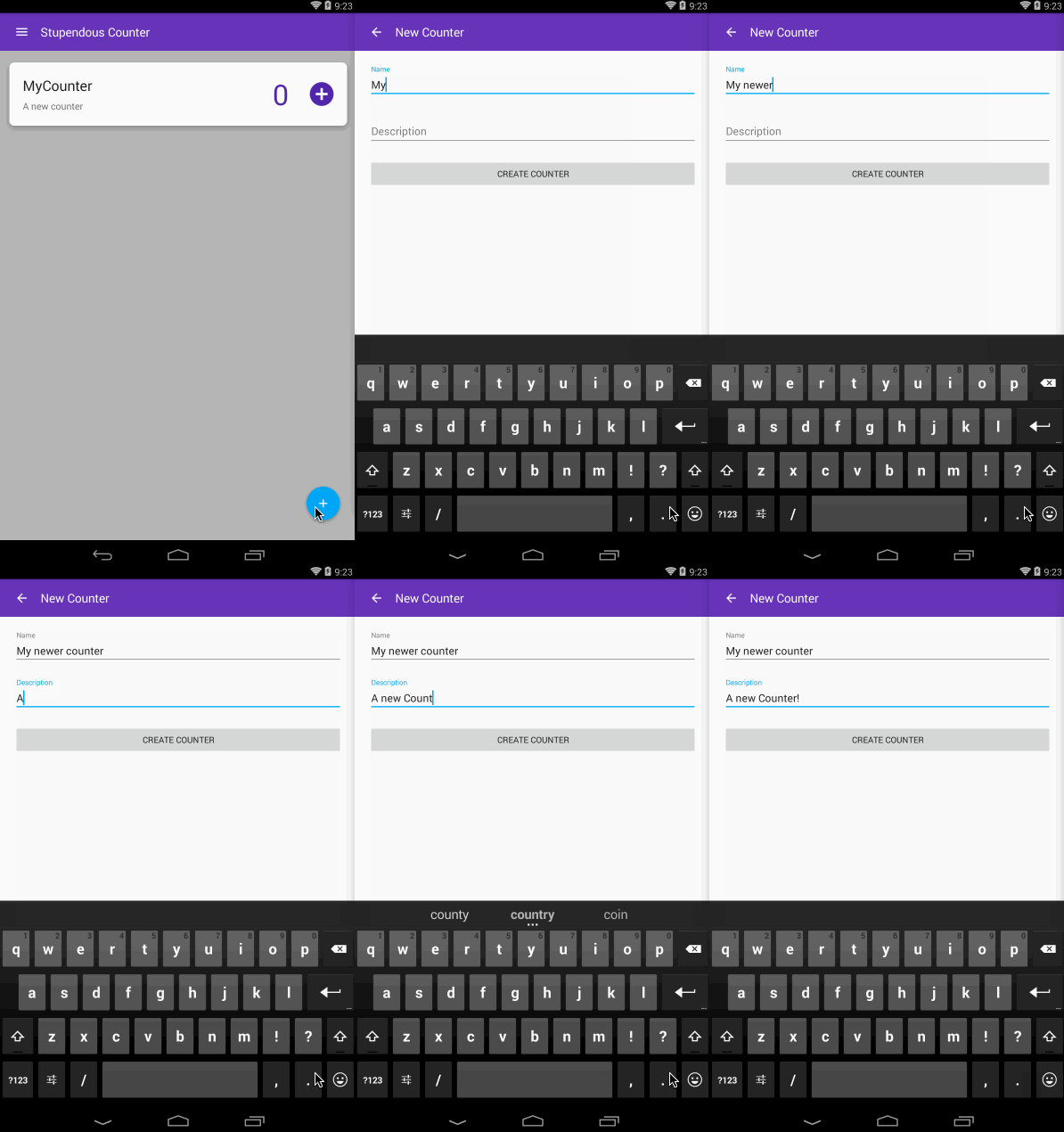
Now this is all done we can run the app and test the navigation.
###### Updating the counters in the UI
If you run and test this you will be able to add a new counter, but the list of counters won't be updated. Recycler views are not able to automatically detect changes to the underlying collection. The final piece of the adding counters puzzle is to wire this up.
The best way to handle this is from the database layer up - we can raise an event in our database helper when the counters are changed, detect this in the counters view model and update our UI.
Let's start with the database helper by adding an event to our `IDatabaseHelper` interface:
```
event EventHandler CountersChanged;
```
Then we implement it in `DatabaseHelper`.
```
public async Task AddOrUpdateCounterAsync(Counter counter)
{
...
OnCountersChanged();
}
public event EventHandler CountersChanged;
private void OnCountersChanged()
{
CountersChanged?.Invoke(this, new EventArgs());
}
```
Notice the new C# 6 null-conditional operator. This will check the value of `CountersChanged` and if this is null do nothing, otherwise it will call the `Invoke` method. Lovely clean code!
We have our event, so lets wire it up in our `CountersViewModel` to update the counters we expose in the view model.
```
public CountersViewModel(IDatabaseHelper databaseHelper, INavigationService navigationService)
{
...
_databaseHelper.CountersChanged += async (s, e) => await LoadCountersAsync();
...
}
public async Task LoadCountersAsync()
{
_counters.Clear();
...
}
```
We're listening on the event and when it is fired reloading the counters from the SQLite database. We're re-using the `LoadCountersAsync` method so we have to tweak it to always clear the collection before populating it with the data loaded from the database helper.
We now have our observable collection changing when the database changes, so we can listen on this to update the view. This can be handled in the `CountersAdapter` - the component in the recycler view that adapts the counters collection to the UI.
```
public CountersAdapter()
{
((INotifyCollectionChanged)ViewModelLocator.Counters.Counters).CollectionChanged += OnCollectionChanged;
}
private void OnCollectionChanged(object sender, NotifyCollectionChangedEventArgs notifyCollectionChangedEventArgs)
{
NotifyDataSetChanged();
}
```
In here we handle the collection change method and when fired call `NotifyDataSetChanged`, a method that tells the recycler view to update the items in the UI. The `Counters` property on the `CountersViewModel` is a `ReadOnlyObservableCollection` which implements `INotifyCollectionChanged` explicitly, so we have to cast it to get access to the `CollectionChanged` event.
Note that this is not the most performant way of doing this. Every action on the collection will cause the entire UI to be updated. The reload is a clear then add of items one by one, so for example if there are 5 counters the `CollectionChanged` event will be raised 6 times and the UI will be fully rebuilt 6 times. The use of `NotifyDataSetChanged` will also cause an entire UI rebuild - there are other notify methods that handle single item adds, deletes or moves which could be used to improve performance. We could also improve the performance by implementing our own collection and only raising the event once. In this case we don't have to worry too much - we don't need to be lightening fast as will only have a few items.
#### Lets test it all out
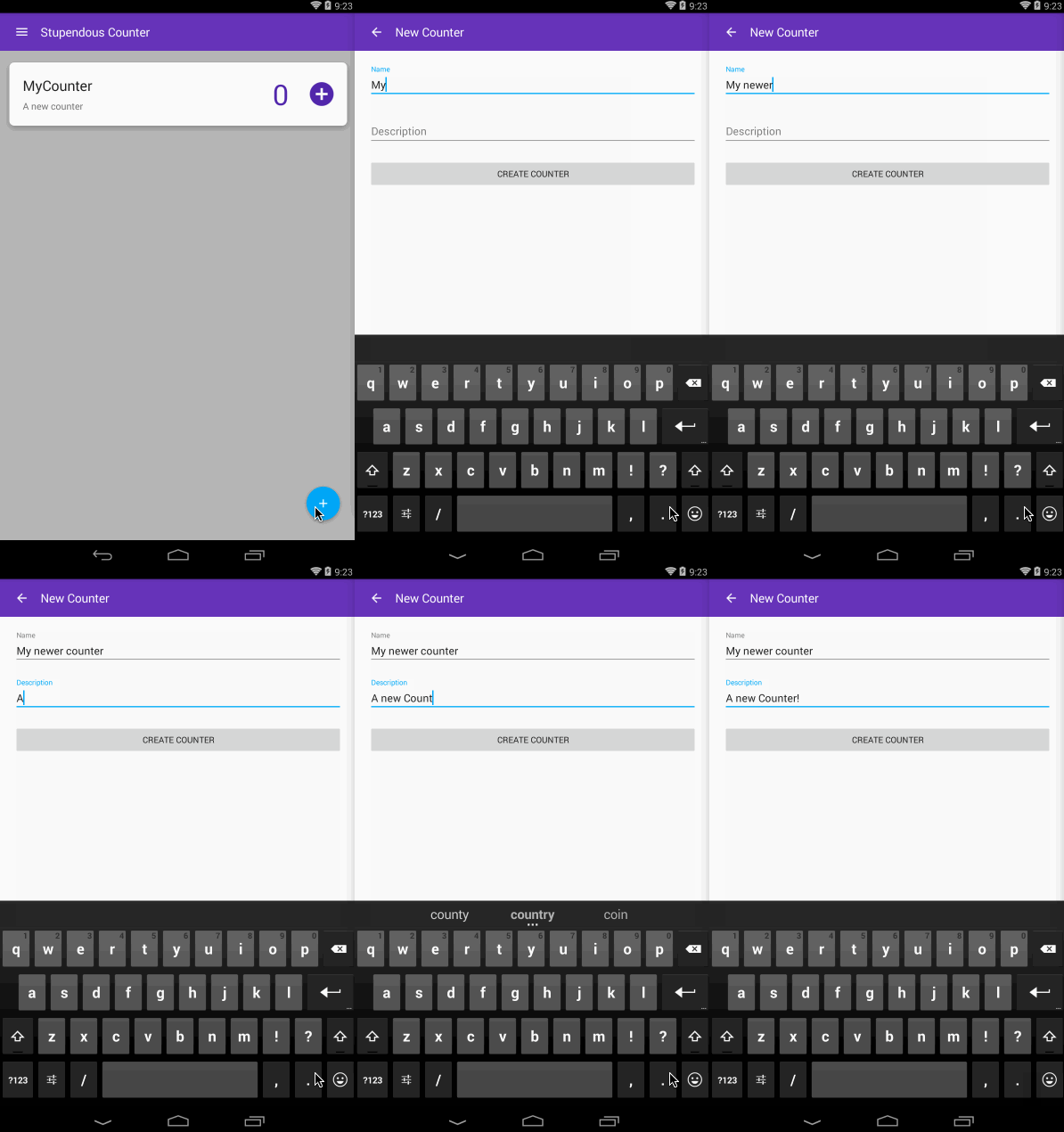
Now everything is wired up, lets take the app for a spin.
#### Update
After feedback from the comments against this post, lets tweak the UI to have a button on the toolbar to create the counter instead of on the bottom of the view.
First we need to remove the button from the bottom of the `new_counter.axml` layout file - just need to delete the `Button` element.
Next we need a menu. The way extra items are added to the toolbar is by creating a menu and inflating it into the toolbar. There is a visual studio template for menus, so right click on the 'Resources/menu' folder and add a new item using the Android menu template called `new_counter_menu.xml`.

In this menu we need to add one item for the new counter button.
```
```
The icon being used here is the done icon from Google's material icons mentioned above. Download this one and copy it to the various drawable folders.
Notice as well the `showAsAction` property comes from the `xmlns:app="http://schemas.android.com/apk/res-auto"` namespace - if you use it from the `android` namespace then the menu item will appear on the overflow menu without an icon.
Now we have our menu, we need to wire it up in the `NewCounterActivity`. We can start here by deleting the `CreateCounter` button and all references to it. Then we need to create the new menu in the toolbar. This is done by overriding the `OnCreateMenuItems` method and loading our new menu into the toolbar in there.
```
public override bool OnCreateOptionsMenu(IMenu menu)
{
base.OnCreateOptionsMenu(menu);
Toolbar.InflateMenu(Resource.Menu.new_counter_menu);
return true;
}
```
Last thing to do is to handle the menu click in the `OnOptionsItemSelected` method. When the new menu item is selected we need to execute the same command the previous button used.
```
public override bool OnOptionsItemSelected(IMenuItem item)
{
switch (item.ItemId)
{
case Android.Resource.Id.Home:
ViewModel.GoBackCommand.Execute(null);
return true;
case Resource.Id.action_create_counter:
ViewModel.AddCounterCommand.Execute(null);
return true;
default:
return base.OnOptionsItemSelected(item);
}
}
```
Done!

The code for this can be found in GitHub on the Part5 branch at https://github.com/jimbobbennett/StupendousCounter/tree/Part5
In the next part we'll work on deleting counters.